Finance (25)
Saferpay is the payment system from Worldline | Six Payment Services for all online solutions. The cloud-based payment solution ensures the secure payment processing of all orders via your Partnershop. Saferpay enables access to a large number of payment methods and supports all known payment methods, including those from third-party providers such as Klarna.
Worldline | Six Payment Services is a so-called Payment Service Provider (PSP), through which your customers are offered various online payment methods within the Partnershop. Six Payment Services has contracts and technical connections with the individual online payment services and thus acts as a link between the merchant and the merchant bank.
The operation of a USS Partnershop does not necessarily require registration with Six Payment Services, as your customers do too
Offline payment methods are available (invoice, payment in advance). However, we recommend activating online payment methods. To do this, you need to register with Six Payment Services. This takes place via a separate process.
If you have any questions, please contact the Setup Manager at the following e-mail address: setup@unitedprintshopservices.com
The following online payment methods are currently available to you when you register for Six Payment Services.
- Credit card
- Direct payment (SOFORT)
SOFORT is a payment method from the third-party provider Klarna.
The following is required to activate the SOFORT payment method (instant transfer) in your Partnershop.
- Registration as an online provider with Klarna SOFORT
https://www.sofort.com/payment/users/register - A valid account (user name, password) for the Saferpay system
- The availability of at least one active Saferpay terminal
- The creation of a new project for SOFORT
To do this, follow the steps in the documentation.
https://saferpay.github.io/sndbx/sofort.html
Note
We recommend using the Google Chrome browser to display the documentation in your language. You can use the integrated translation function to display the content of the page in your language. The language selection is based on the selected system language of your operating system or browser.
Activation in the Partnershop backend
To activate the online payment method SOFORT (direct payment) in your Partnershop, switch to the Partnershop backend after successfully completing steps 1-4.
Note
If you have not yet saved your Worldline business account in the Partnershop backend, please follow the steps for activation as described under Credit Card.
You can then activate the “Activate Payment by Directpay” checkbox in the “Activate payment methods” module on the same page (Finance > Payment) and confirm here with “Go”.
The payment method is then available to customers in the shopping cart.
Credit card payments are made in the partner shop via the provider Worldline | Six Payment Services offered.
First you need to register with Six Payment Services.
If you have any questions, please contact the Setup Manager at the following e-mail address: setup@unitedprintshopservices.com
When the registration with Six Payment Services has been completed, you will receive your activation data and access data for My Saferpay and the Merchant Portal (My Portal) from Six Payment Services by e-mail.
To receive the data required to activate the credit card payment method in your Partnershop, please proceed as follows:
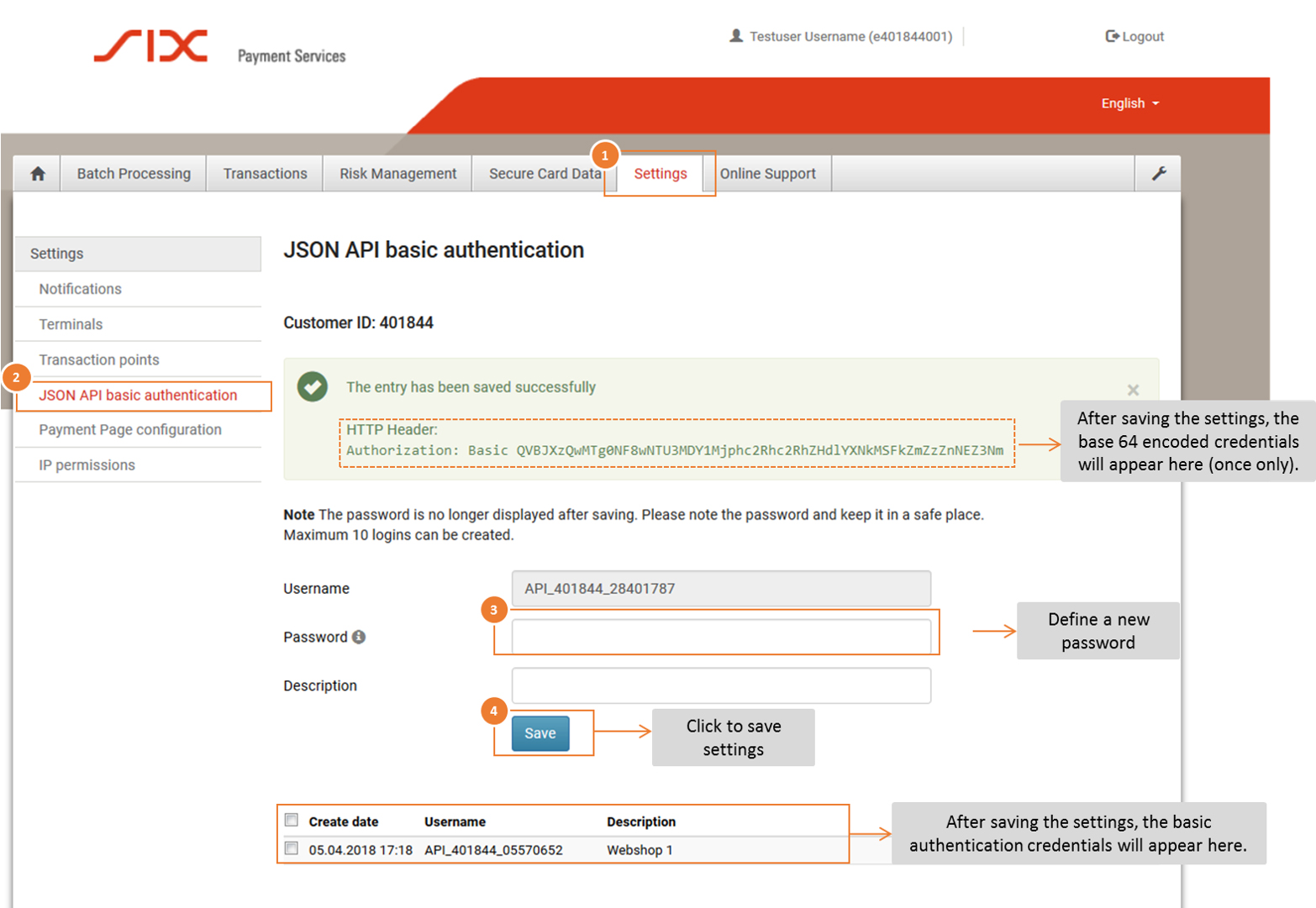
- Log in to the Saferpay Backoffice (My Saferpay) with your Saferpay user name and the corresponding password in order to create the JSON API access data.
- After successfully logging in, navigate to “Settings” (1) and then to “JSON API Basic Authentication” (2).
- Define your API password (3). Click the “Save” button (4) to save your entries.
Activation in the Partnershop backend
Open your Partnershop backend in the Finance > Payment area and enter the required data in the “Indicate your Worldline business account” module.
- API username: This is the username which is displayed in My Saferpay > Settings> JSON API Basic Authentication, e.g. API_401844_28401787
- API password: This is the password that you have defined in My Saferpay.
- Customer ID: The CustomerID is a 6-digit sequence of numbers and is displayed in My Saferpay > Settings > JSON API Basic Authentication. It is also part of the username API, e.g. 401844
- Terminal ID: You can find the Terminal ID (for e-commerce transactions) on the one hand in My Saferpay > Settings > Terminals and on the other hand in the activation data sent to you by SIX Payment Service by e-mail. The Terminal ID usually has the format 17xxxxxx.
Confirm the entries in the Partnershop backend with the button “Go” .
You can then activate the “Activate Payment by credit card” checkbox in the “Activate payment methods” module on the same page (Finance > Payment) and confirm here with “Go”.
The payment method is then available to customers in the shopping cart.
The PayPal payment processing does not take place via the Payment Service Provider Worldline | Six Payment Services but directly between you and PayPal.
For you as a Partnershop operator, a PayPal business account is required.
To use the “PayPal” payment method within your partner shop, it is necessary to enter the data from the PayPal business account in the partner shop backend – Payment > Indicate your PayPal business account.
To do this, follow the steps below.
- Sign in to your PayPal account. [1]
Use the URL https://www.paypal.com/mep/dashboard or go directly to the developer settings via https://developer.paypal.com/developer/applications/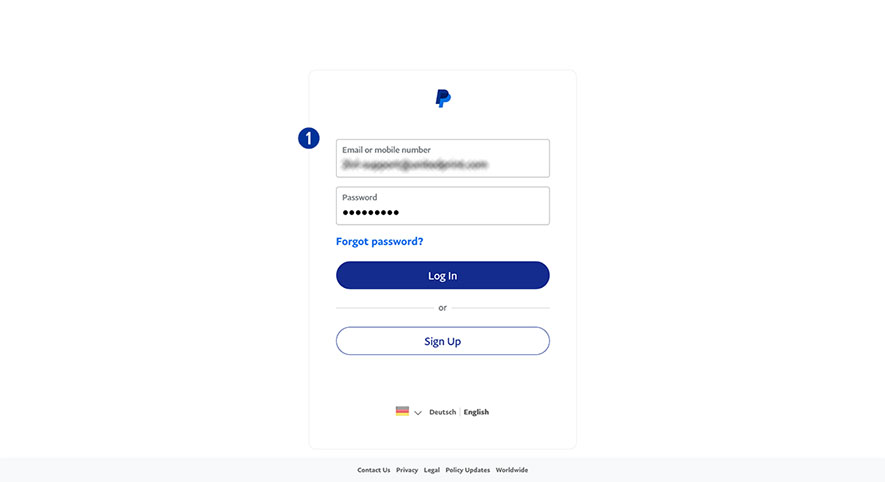
- Click the link “Developer” in the main navigation. [2]
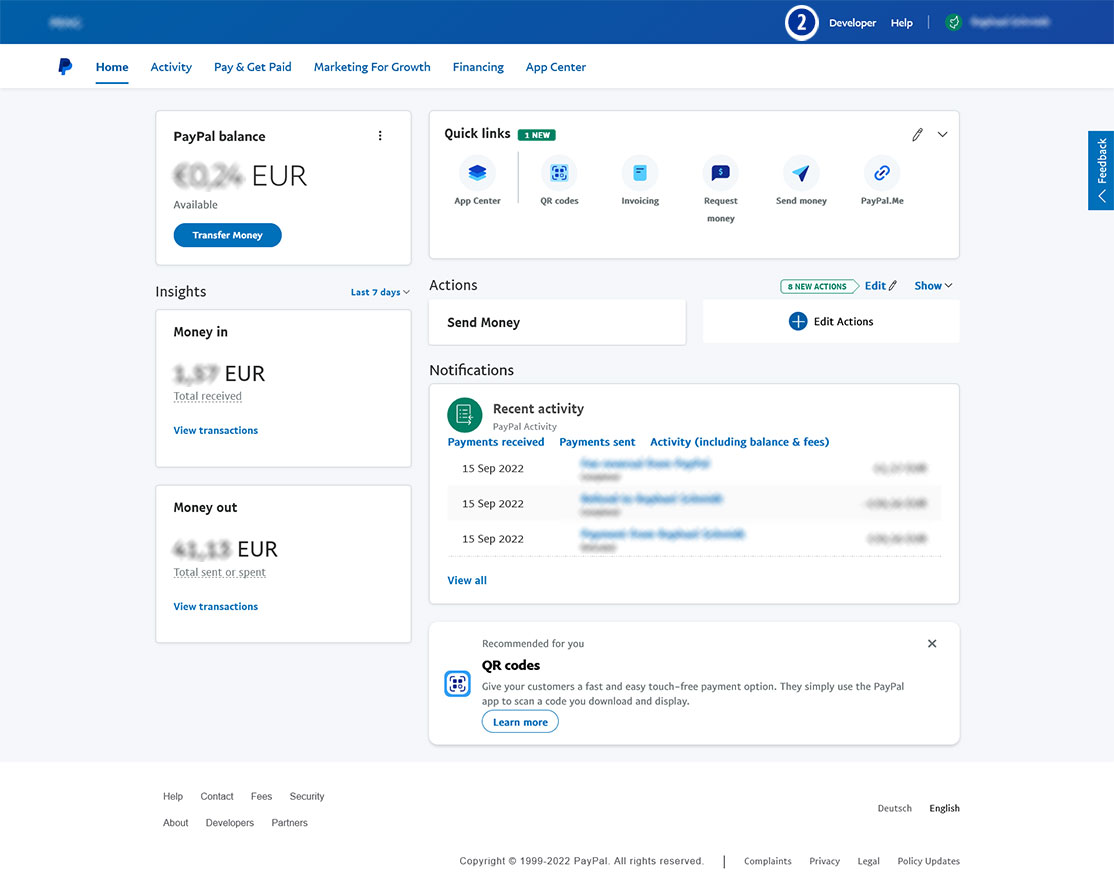
- Click “Go to Dashboard > Developer Dashboard” in the main navigation. [3]
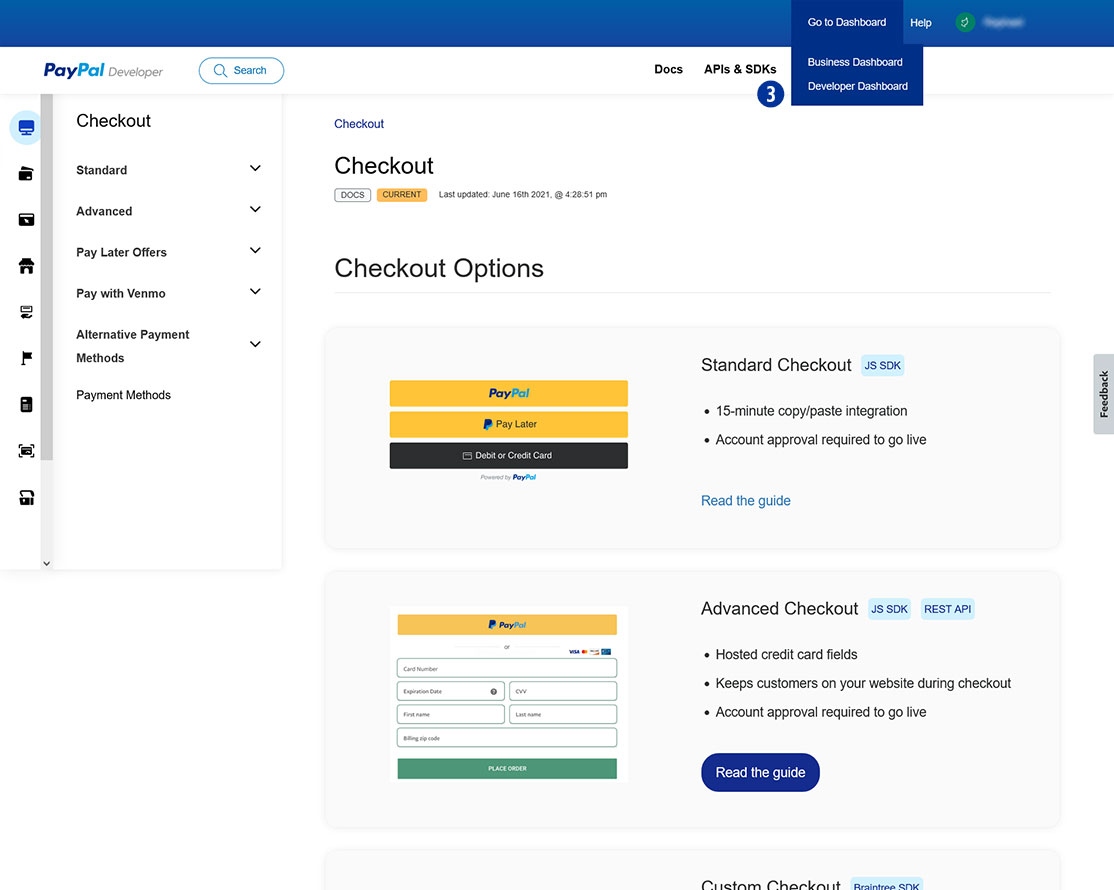
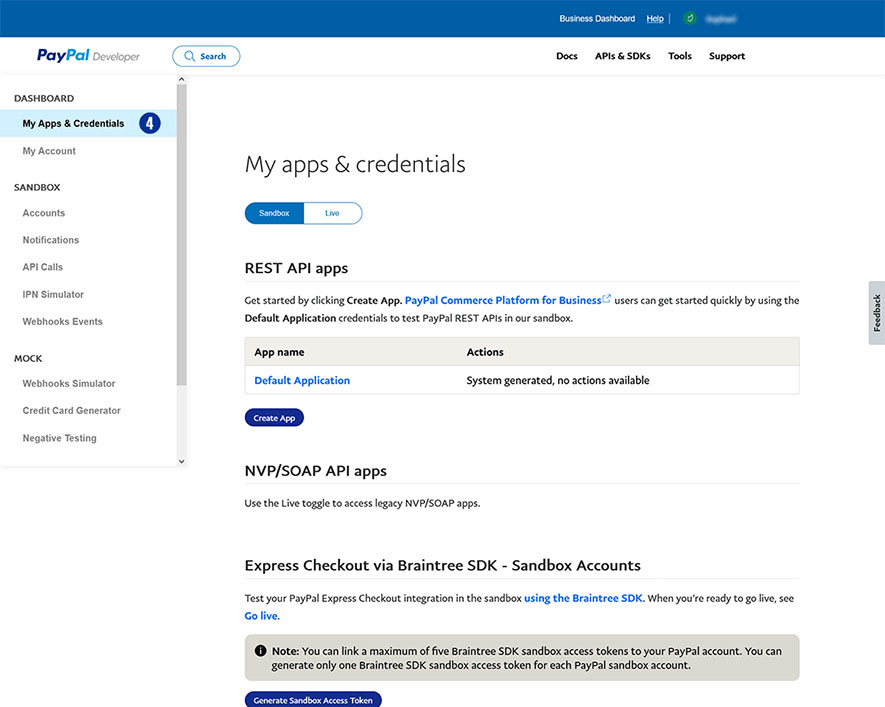
- Select “Dashboard > My Apps & Credentials”. [4]
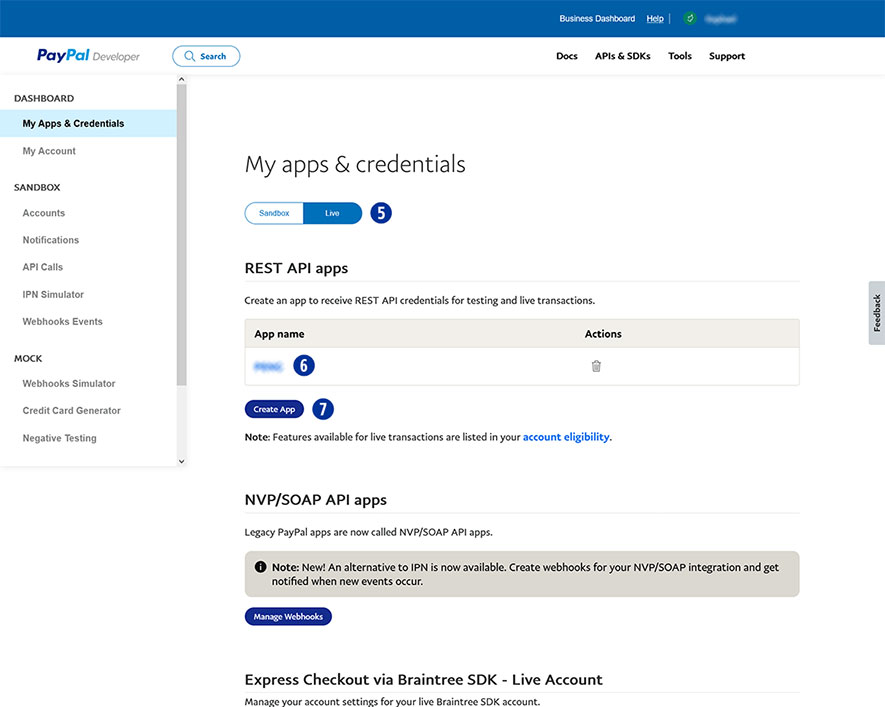
- Click the button “Live”. [5]
- Choose your shop name at “App name”. [6]
If there is no shop name yet, click “Create App” and assign an app for your Partnershop (e.g. brand name). [7]
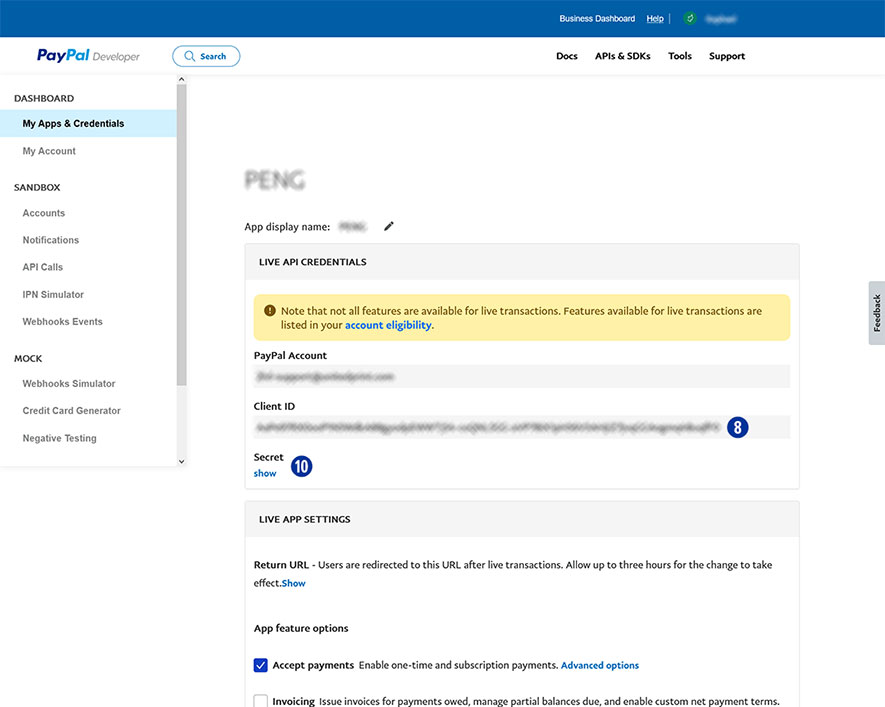
- Copy the “Client ID” [8] and paste it in the Partnershop Backend – Payment > Indicate your PayPal business account. [9]
- In the PayPal account under “Secret” click the link “show” [10] to display the secret key.
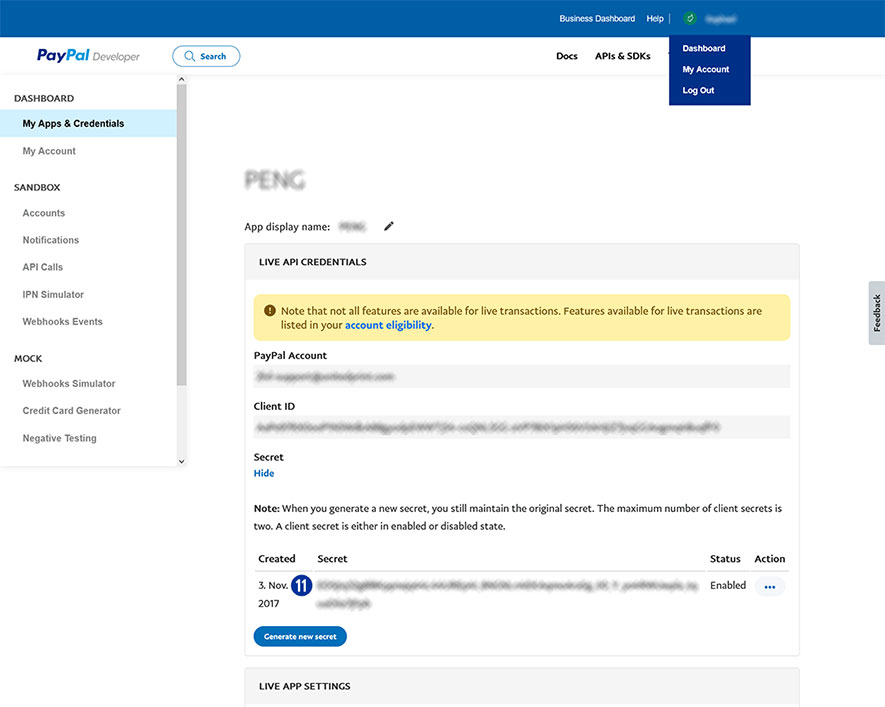
- Copy “Secret” [11] and paste it in the Partnershop Backend – Payment > Indicate your PayPal business account. [9]
- Confirm your entries by clicking the “Go!” button. [12]
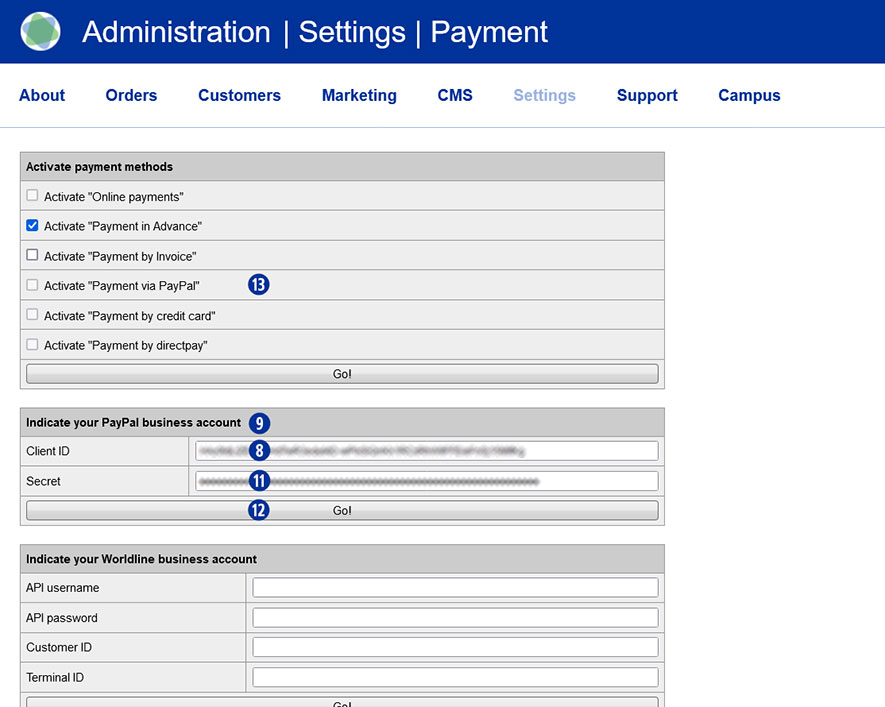
Finally, activate the payment method PayPal in the Partnershop Backend – Payment > Activate “Payment via PayPal” for all customers. [13]
Um Ihr PayPal Mandat zu prüfen und zu bestätigen, wechseln Sie bitte auf die PayPal-Seite https://www.paypal.com und melden sich dort mit Ihren Account-Daten an. In Abhängigkeit davon, ob Sie ein Privatkonto oder ein Geschäftkonto nutzen, erfolgen die weiteren Schritte.
Privatkonto
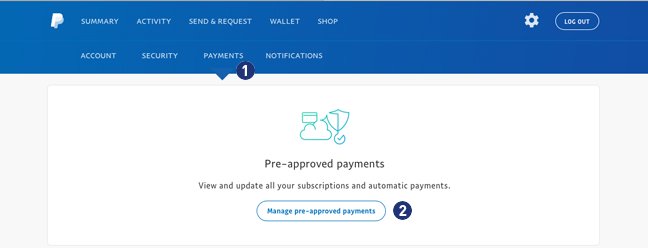
Nach erfolgreichem Login wechseln Sie über das „Zahnrad“ Icon in das Menü „Payments“. [1]
Klicken Sie dort den Button „Manage pre-approved payments“. [2]
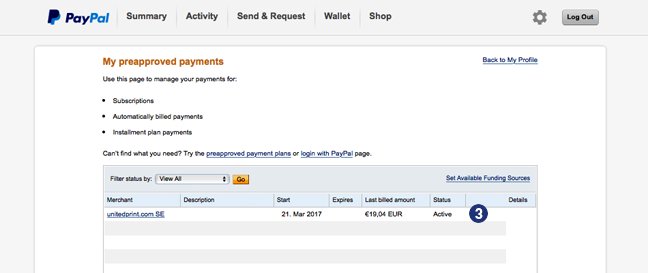
 Bestätigen Sie in der Ansicht „Abrechnungsdetails“ Ihr PayPal Mandat für „unitedprint.com SE“. [3] Der Status muss dabei “Aktiv” anzeigen.
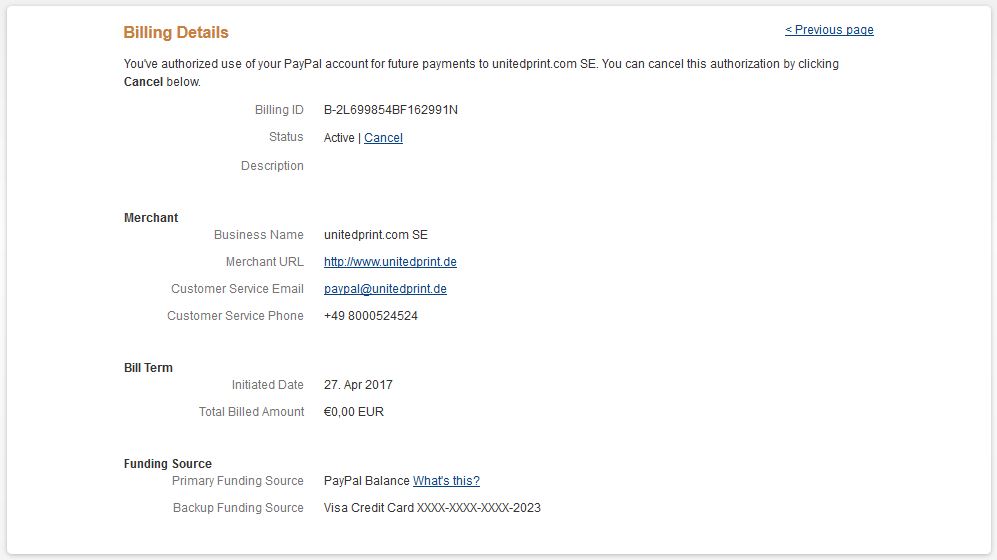
 Klicken Sie auf „unitedprint.com SE“ und prüfen Sie in den „Abrechnungsdetails“ ob unter dem Punkt „Zahlungsquelle“ -> „Alternative Zahlungsquelle“ Ihre Kreditkarte (Beispiel VISA-Kreditkarte) eingetrage ist.
Geschäftskonto
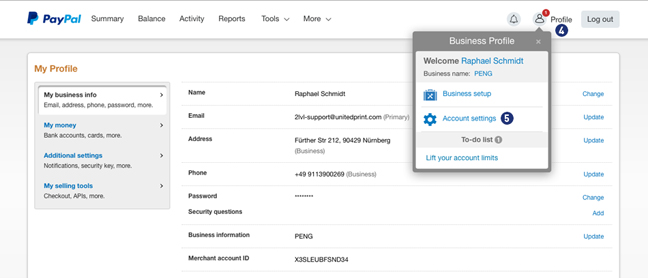
Nach erfolgreichem Login wechseln Sie bitte unter “Profile” [4] > “Account Settings” [5] > “My Money”. [6]
Klicken Sie bei dem Punkt “My preapproved payments” [7] den Link “Update”. [8]
Bestätigen Sie in der Ansicht „Abrechnungsdetails“ Ihr PayPal Mandat für „unitedprint.com SE“. [9] Der Status muss dabei “Aktiv” anzeigen.
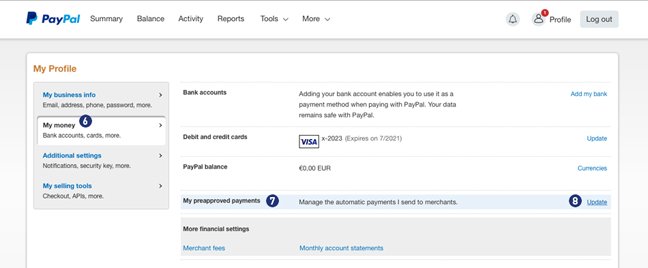
Klicken Sie auf „unitedprint.com SE“ und prüfen Sie in den „Abrechnungsdetails“ ob unter dem Punkt „Zahlungsquelle“ -> „Alternative Zahlungsquelle“ Ihre Kreditkarte (Beispiel VISA-Kreditkarte) eingetragen ist.
Hinweis:
Bitte beachten Sie das abweichende Layout sowie die unterschiedliche Navigation in den beiden Bereichen Privatkonto und Geschäftskonto.
Yes. If your customers orders several items with the same product properties, these items can be shipped collectively. For these positions, your shop will offer a shipment voucher.
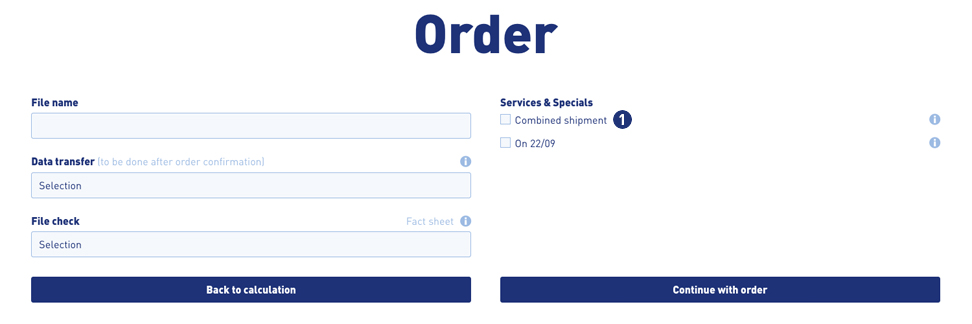
During the ordering process, your customers have the opportunity to select the option “Combined shimpment”. To do this, select the checkbox “Combined shimpment”. [1]
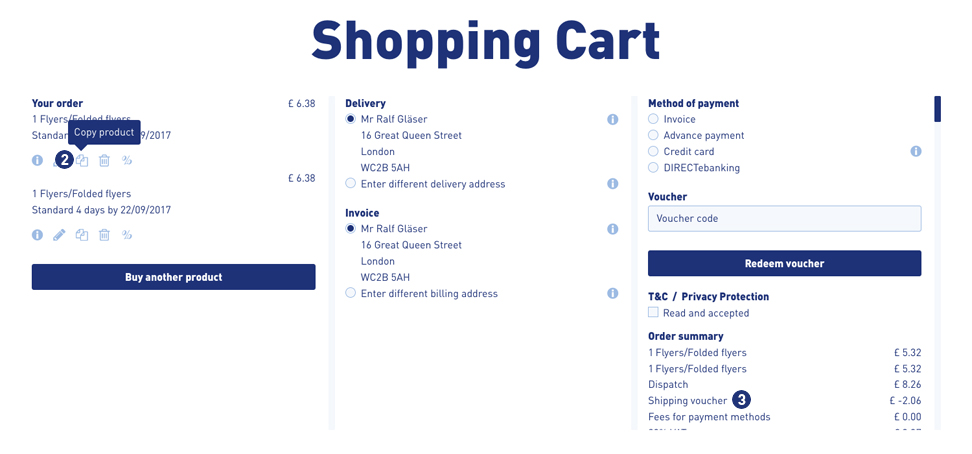
You can use the function “Copy product” in the shopping cart [2] to create several items of the previously configured item (for example, business cards) and to order these with a corresponding dicoount as a collective shipment. The result is displayed in the calculation overview in the shopping cart. [3]
Alternatively, it is possible to configure the same product once or several times over the calculation page and place it in the shopping cart.
Note
An order with the option “combined shipment” is not triggered to production until the print data has been uploaded to all items.
The delivery date changes for the entire order!
You receive offline payments directly from your customers.
Online payments are automatically transferred to your account on a weekly basis. Your margins are the sales prices paid by your customers in your USS Partnershop using the online payment method, less the three possible cost units:
- Unitedprint purchase price
- Unitedprint commission for self-produced shop articles
- Six Payment Services fees for online payments
Payment between Unitedprint and you as a partner is made primarily via PayPal. In agreement with our finance department, an invoice payment may also be possible.
You must pay this invoice within the specified payment term. Fees for the use of online payment methods are billed directly by Wirecard.
Please, inform within 15 minutes after completion of order our support team Phone (020-34 99 03 68) / support@easyprint.co.uk.
Otherwise, your trial order needs to be paid. Additionally please cancel your trial order directly into your Partner backend.
For callback please hold ready the United Print ID of each order.

If an order from your customer was ordered with the payment method Advance payment or Invoice you must confirm receipt of payment.
To do this, follow the steps below.
Advance payment
- Switch to the Partnershop backend menu under Orders / Track. [1]
- Select a search criterion [2] and confirm this with the “Go!” button. [3]
- In the search results list, click on the order item in the column “Order item” that is to be confirmed. [4]
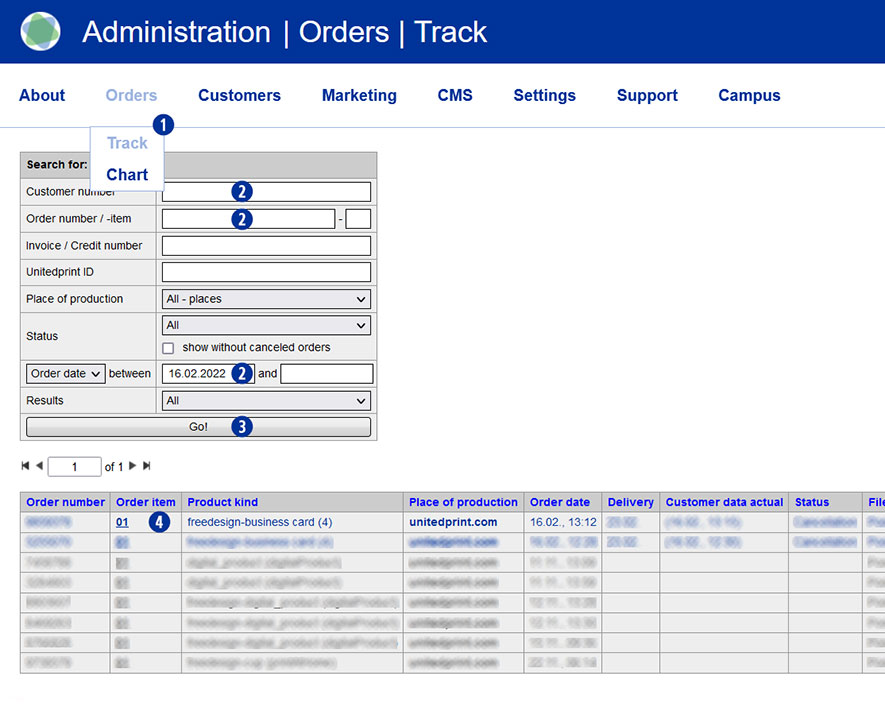
The current order status is displayed as “unpaid” in the line “Status of payment” of the Payment module. [5]
- Within the detail view in the module “Payment” / “Payment by”, please activate the checkbox “advance payment”. [6]
- Confirm your selection with the button “Go!”. [7]The order is shown as “paid” in the line “Status of payment”. [8]
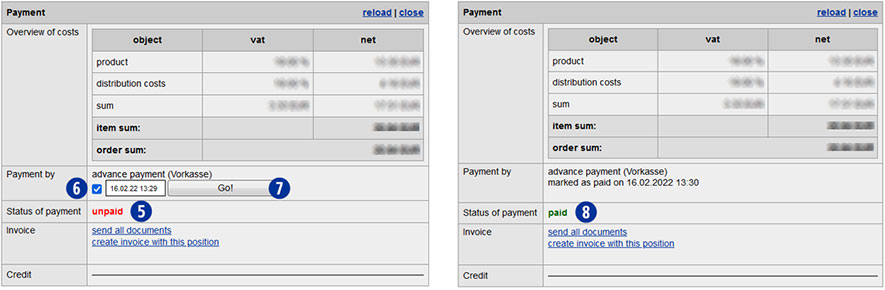
Note
Only after conversion of the status to “paid” an order with Advance payment will be transmitted automatically to Unitedprint.
Invoice
- Switch to the Partnershop backend menu under Orders / Track. [1]
- Select a search criterion [2] and confirm this with the “Go!” button. [3]
- In the search results list, click on the order item in the column “Order item” that is to be confirmed. [4]
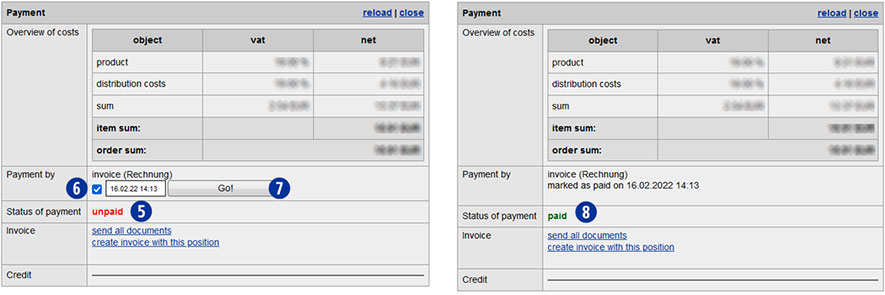
The current order status is displayed as “unpaid” in the line “Status of payment” of the Payment module. [5]
- Within the detail view in the module “Payment” / “Payment by”, please activate the checkbox “Invoice”. [6]
- Confirm your selection with the button “Go!”. [7]The order is shown as “paid” in the line “Status of payment”. [8]
Note
If a PayPal payment is displayed as “unpaid”, please check the payment transactions in your PayPal business account.
Once the payment has been received, confirm receipt of payment there. If no payment has been received, please inform your customer.
Unconfirmed PayPal payments for Partnershop orders are not transmitted to Unitedprint and will therefore also not produced.
If you only have the corresponding Easyprint order number for a partner shop order, you can find out the corresponding partner shop order via your Partnershop backend.
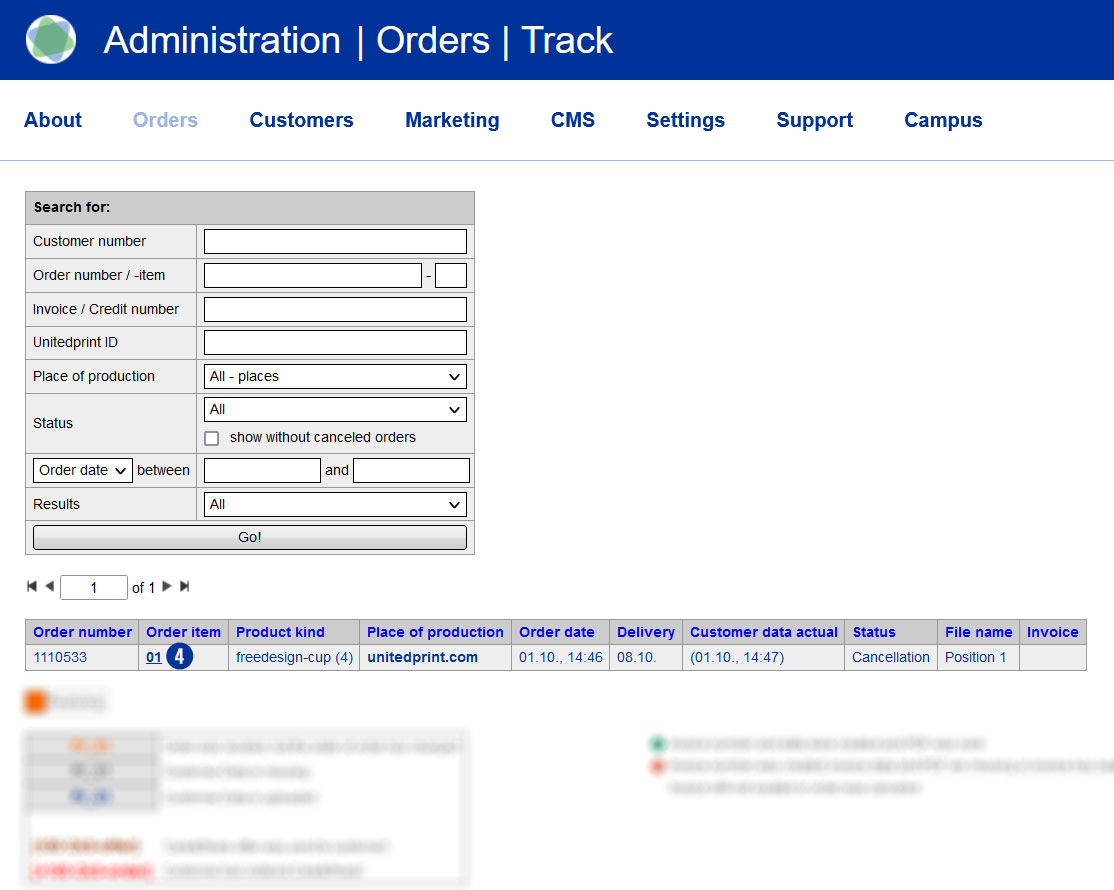
To do this, switch to the Partnershop backend and continue via Orders / Track. [1] In the input field “Unitedprint ID”, enter the Easyprint order number available to you [2] and confirm your entry by clicking the button “Go!” [3]
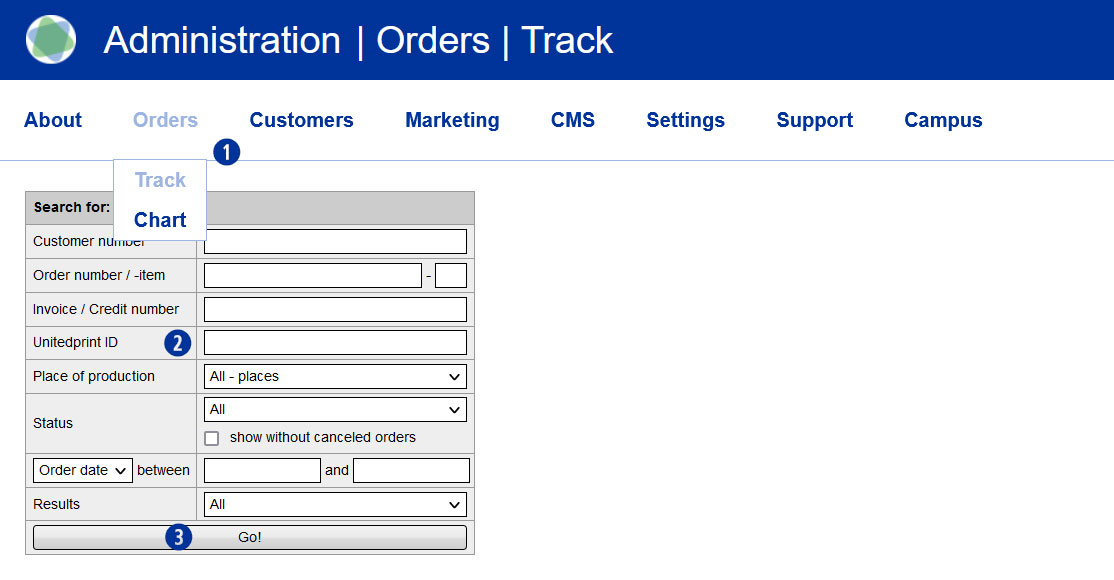
The desired Partnershop order is displayed as a result. For a detailed view of the order, click on the link (s) in the “Order item” column. [4]
An invoice that was already created and sent to your customer can be changed later.
To do this, go to your Partnershop Backend Orders / Track and search for the order related to the invoice. Change to the detailed view and to the module “Payment”.
In the next step, the ordered and sent invoice has to be canceled. To do this, proceed as follows.
how-do-i-create-a-cancellation-invoice/
After successful cancellation, you can create a new invoice manually and send it to your customer manually. To do this, proceed as follows.
how-can-i-create-a-customer-invoice/
Using the edit function (pen) you have the possibility, to change the invoice address, the delivery or invoice date, and so on.n.
The requirement for creation of a customer credit note is that an invoice has been previously generated and sent for the corresponding order.
If an order is invoiced, the “Credit” sub-item is displayed in the “Payment” module of the Partnershop Backend under Orders / Track.
To create a new credit note, click the “new” link. In the opened input form, you select a credit date, store the desired credit amount for net charge, and choose the relevant VAT rate using the selection menu.
Close the credit note by clicking on the “Save & Create” button. Confirm the embedded message. The credit note is generated and a PDF document is created. Choose Open.
To send the credit note by e-mail, click on the “track” button. This returns you to the details of the order. Then click the “send” link. An e-mail with the credit note PDF in the appendix will be sent to your customer. The shipping status of the e-mail is displayed under the item “Mailtracking”.
Note
To check the shipping status “sent” within the mailtracking, you leave the order detail view and call the order again via “Track”. Do not update the job detail view by pressing the F5 key.
Invoicing for the customer takes place automatically. This means that the creation of the invoice is triggered as soon as the purchase order is sent to the customer or the order status changes to “Dispatch”.
If you want to create an invoice manually, please go to the backend area Orders / Track > Payment > Invoice – “Create Invoice with this position”.
Change the delivery date (“edit delivery date”) as well as the invoice date (“edit invoice date”) and click the “save” button. Then click the “back” button and then the “create” button. The invoice is generated and a PDF document is created. Select “open” or “save”.
To send the invoice by e-mail, click on the “track” button. This returns you to the details of the order. Then click the “send” link. An e-mail with the invoice PDF in the appendix will be sent to your customer. The shipping status of the e-mail is displayed under the item “Mailtracking”.
Note
To check the shipping status “sent” within the mailtracking, you leave the order detail view and call the order again via “Track”. Do not update the job detail view by pressing the F5 key.
The creation of a reversal invoice is only necessary (and possible) if the actual invoice has already been created and sent by the system via e-mail to your customer (automatically with the dispatch of the goods).
USS differentiates between the cancellation of an order and the cancellation of the invoice. An order cancellation does not automatically create a cancellation invoice.
If an invoice has already been created and sent and should it be canceled and a cancelation invoice be created and sent, this can be done in the backend area Orders / Track. Locate and select the corresponding job item in “Track”. Scroll to the module “Payment”. There you will see the invoices already sent in the section “Invoice”. Click “Cancel” under the corresponding invoice to cancel this invoice.
Then click the link “send cancelation”. An e-mail with the reversal invoice PDF in the appendix is sent to your customer. The shipping status of the e-mail is displayed under the item “Mailtracking”.
Note
To check the shipping status “sent” within the mailtracking, you leave the order detail view and call the order again via “Track”. Do not update the job detail view by pressing the F5 key.
Your shop offers multiple offline and online payment methods.
Offline payment methods include “payment in advance” and “payment by invoice”. Online payment methods are provided by Six Payment Services. They vary from country to country and – in addition to all usual credit cards – include regional payment methods (e.g. EPS, Ideals, Przelewy24). An activated Six Payment Services account is required in order to offer online payments.
Additionally you are able to pay via PayPal.
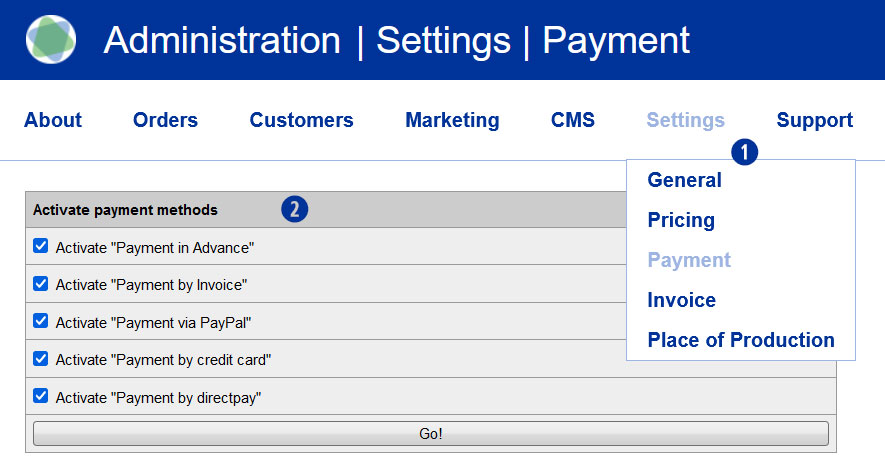
The activation/deactivation of the individual payment methods takes place via the Partnershop backend under the menu item Settings > Payment [1] in the module „Activate payment methods“. [2]
Offline payment transfers need to be managed outside the USS Partner Shop scheme (e.g. via your regular bank account interface).
Note
The offline payment method “payment by invoice” is for safety reasons only to registered users.
Yes, in case you allow your customers to chose “payment by invoice” or “payment in advance”, you will receive these payments directly from your customer and without the involvement of Wirecard. Whether this is a bank transfer, a cash payment, or another means of money transfer, is irrelevant for USS.
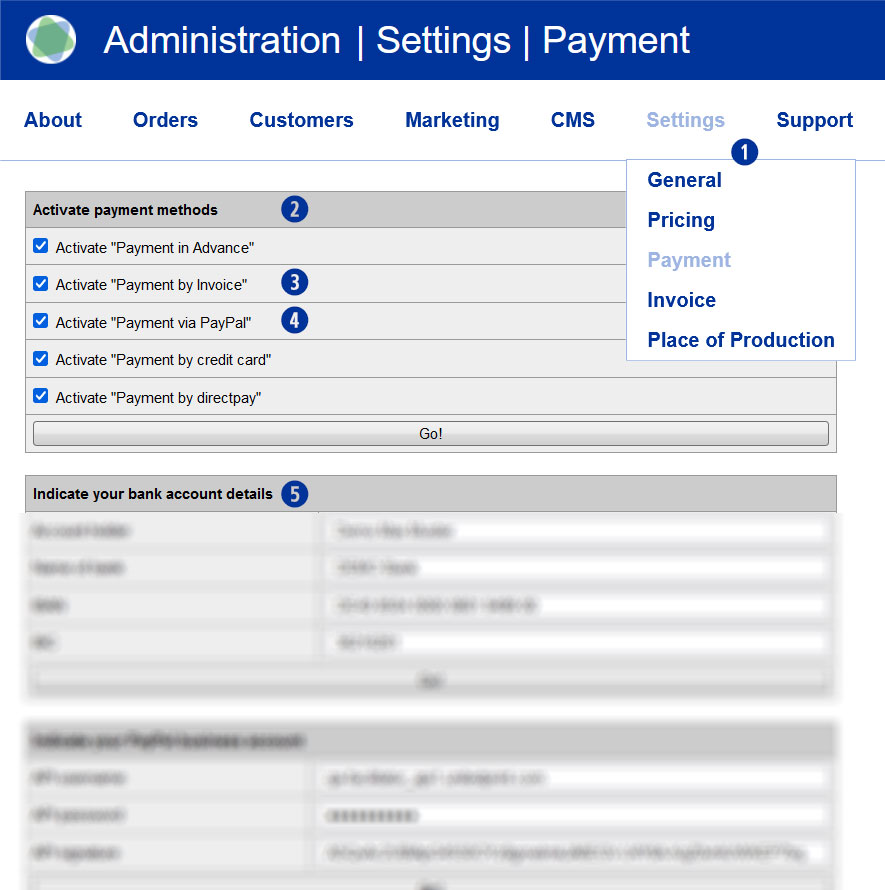
To do this, activate in your backend under Settings / Payment [1] in the module “Activate payment methods” [2] the setting “Payment in Advance” [3] for purchase in advance and “Payment by Invoice” [4] for purchase by invoice.
Please also enter your account details under “Indicate your bank account details” [5]. These will be shown to your customers when paying in advance in the shop and on the confirmation email.
Please refer to your contract for the fees for using your USS Partnershop.
Costs only accrue when you receive orders. In case an order is produced by Unitedprint, you will be charged the listed price (minus your personal discount). When you are producing the order yourself, you will be charged a commission fee.
The Payment Service Provider Wirecard will charge fees in case your customers chose to use online payment methods. Wirecard’s terms can be viewed at any time in your Wirecard backend.
Note
Non-EURO accounts (for example, CHF, GBP, etc.) may result in differential amounts within Wirecard settlements. These are customary foreign bank fees. As a payment provider, Wirecard has no influence whatsoever.
In order to keep this amount as small as possible, Wirecard can for you as a Partner can switch the payout period from weekly to monthly.
Another option would be to create a EURO account and pay out in EUR.
The invoice template is similiar to your company’s official letterhead. Dynamic invoice information (such as the item list, prices, VAT, customers’ address) will automatically be added to the document, which will then be sent to your customers.
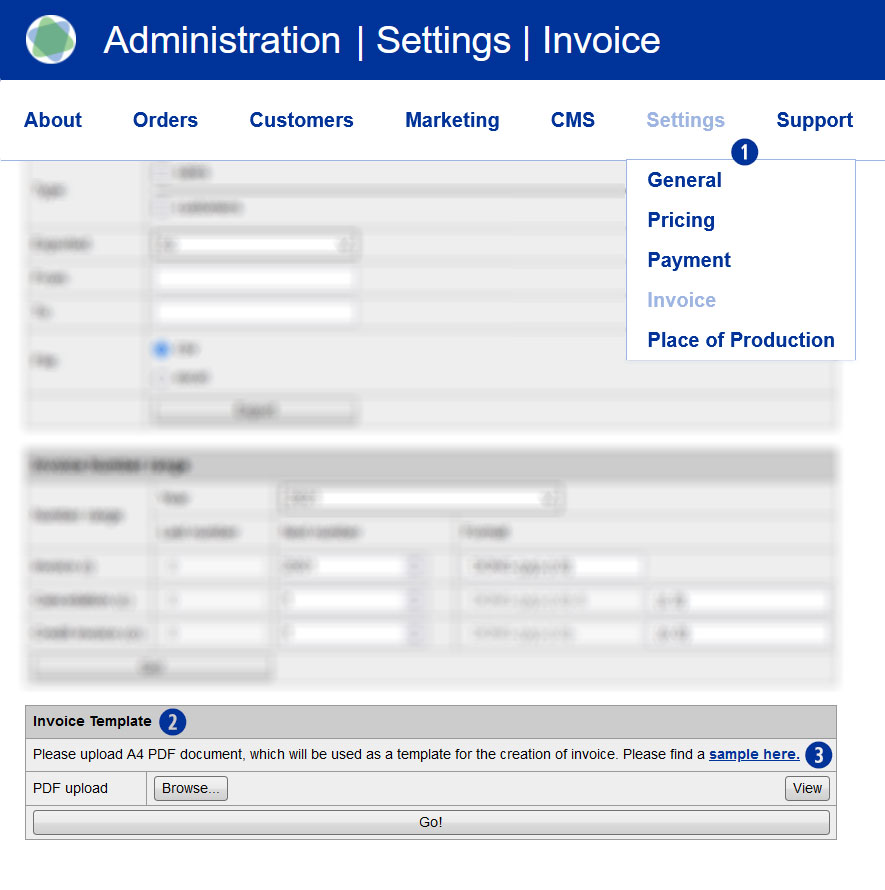
Upload the invoice template in PDF format into your Partnershop backend. For doing so, go to the backend section Settings / Invoice [1], further to the module “Invoice Template” [2] and click the button “Browse” [4] and select the previously prepared invoice template. Confirm the upload by clicking the button “GO!” [5]
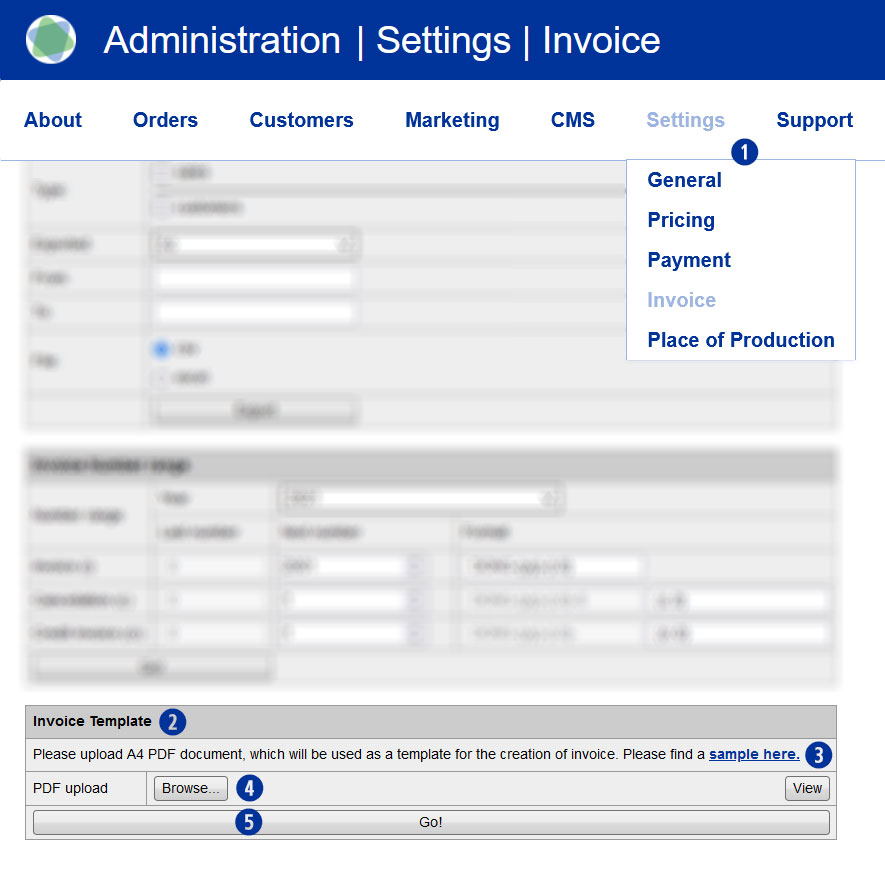
This document then serves as a template for your invoices. An example of how such an invoice template is structured is available for using the download link “sample here” [3].
In order to generate invoices using your corporate design and official company information, your USS partner shop requires a corresponding template. You can generate such a template within just a few minutes. For general guidlines for the placement of your template’s content, please use the sample file provided.
Go into the backend section Settings / Invoice. [1] In the module “Invoice template” [2] you’ll find a link „sample here“ [3] with our sample PDF file. Download the sample file and overwrite it with you componay’s information. Alternatively, you can of course generate such an invoice template yourself.
Note
When designing your own invoice template, please do not place text patterns or images in areas that are left white in the sample template. These areas (especially in the center and the top of the page are need for dynamic invoice information. Save the invoice document in PDF version 1.4 (Acrobat 5.x).
The version check can be carried out with the PDF document open in the Adobe Reader or Adobe Acrobat Pro program over the menu “File / Properties”.
If you cancel an order already transferred to Easyprint, a cancellation fee of 15.00 Euro will be charged. Whether the cancellation fee is due depends on the order status at the time of cancellation.
Note
The manual billing in the Partnershop must take place before the cancellation at Easyprint.
The cancellation fee can be charged by you as a partner to your customer. To do this, a manual invoice must be created via the backend of your Partnershop. Go to the backend section Orders / Track > Payment > Invoice and click the link “Create Invoice with this position”.
In the displayed invoice form, change the invoice item and click the “save” button. Then click the button “back” and then the button “create”. The invoice is generated and a PDF document is created. Choose Open or Save.
To send the invoice by e-mail, first click on the button “track”. This returns you to the order detail view. Then click the link “send”. An e-mail with the invoice PDF attached will be sent to your customer. The delivery status of the e-mail is displayed under the item “Mail tracking”.
The “Cancellation Fee as Damages” of EUR 15.00 collected as a Easyprint Partner is tax-exempt as VAT. 3 para. 2 offset. This means that the invoice to your end customer may not include VAT.
The sales summary keeps track of your earnings and expenses at all times.
Use the export function in your Partnershop backend.
In the section Settings / Invoice [1] you will find the module “Search Orderrevenue”. [2]
For a query, select the desired period (month-year) [3], the desired file format (Excel or CSV) [4] and then click on the button “Export”. [5]
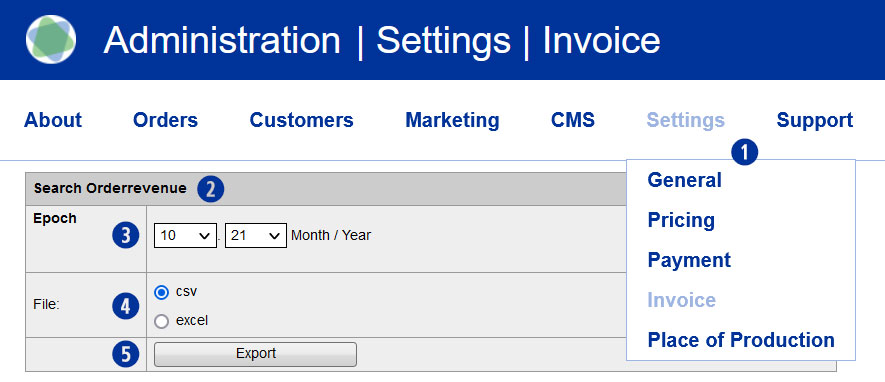
The export file is either directly opened or saved locally with the following name.
Example
Show all sales of my customers in the month of October 2021
- shopbrandname_revenues_21_10.xls
- shopbrandname_revenues_21_10.csv
The generated evaluation contains the following columns/values including a headline.
- Unitedprint Invoice ID
- Unitedprint Invoice Date
- Unitedprint Orderrevenue
- Unitedprint Order ID
- Unitedprint Paymethode
- Shop Invoice ID
- Shop Order ID
- Shop Orderrevenue
- Shop Paymethode
General (1)
Please, inform within 15 minutes after completion of order our support team Phone (020-34 99 03 68) / support@easyprint.co.uk.
Otherwise, your trial order needs to be paid. Additionally please cancel your trial order directly into your Partner backend.
For callback please hold ready the United Print ID of each order.
Production (2)
Yes. If your customers orders several items with the same product properties, these items can be shipped collectively. For these positions, your shop will offer a shipment voucher.
During the ordering process, your customers have the opportunity to select the option “Combined shimpment”. To do this, select the checkbox “Combined shimpment”. [1]
You can use the function “Copy product” in the shopping cart [2] to create several items of the previously configured item (for example, business cards) and to order these with a corresponding dicoount as a collective shipment. The result is displayed in the calculation overview in the shopping cart. [3]
Alternatively, it is possible to configure the same product once or several times over the calculation page and place it in the shopping cart.
Note
An order with the option “combined shipment” is not triggered to production until the print data has been uploaded to all items.
The delivery date changes for the entire order!
Please, inform within 15 minutes after completion of order our support team Phone (020-34 99 03 68) / support@easyprint.co.uk.
Otherwise, your trial order needs to be paid. Additionally please cancel your trial order directly into your Partner backend.
For callback please hold ready the United Print ID of each order.