How do I activate the payment method PayPal for my customers?

The PayPal payment processing does not take place via the Payment Service Provider Worldline | Six Payment Services but directly between you and PayPal.
For you as a Partnershop operator, a PayPal business account is required.

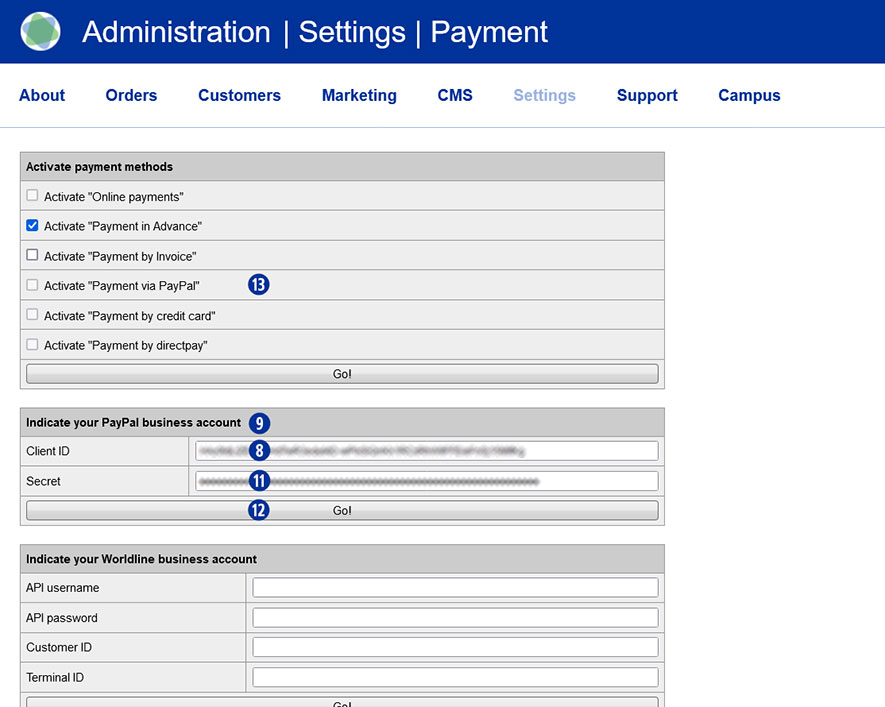
To use the “PayPal” payment method within your partner shop, it is necessary to enter the data from the PayPal business account in the partner shop backend – Payment > Indicate your PayPal business account.

To do this, follow the steps below.

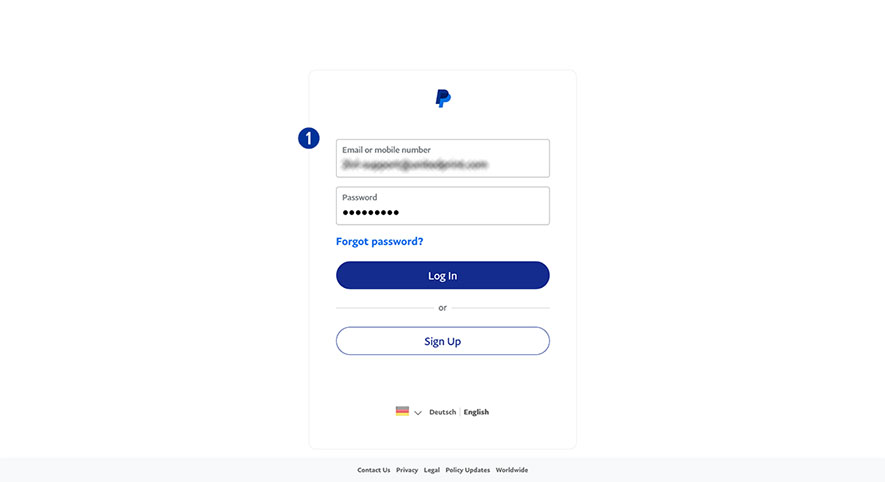
  1. Sign in to your PayPal account. [1]
    Use the URL https://www.paypal.com/mep/dashboard or go directly to the developer settings via https://developer.paypal.com/developer/applications/
  2. Click the link “Developer” in the main navigation. [2]
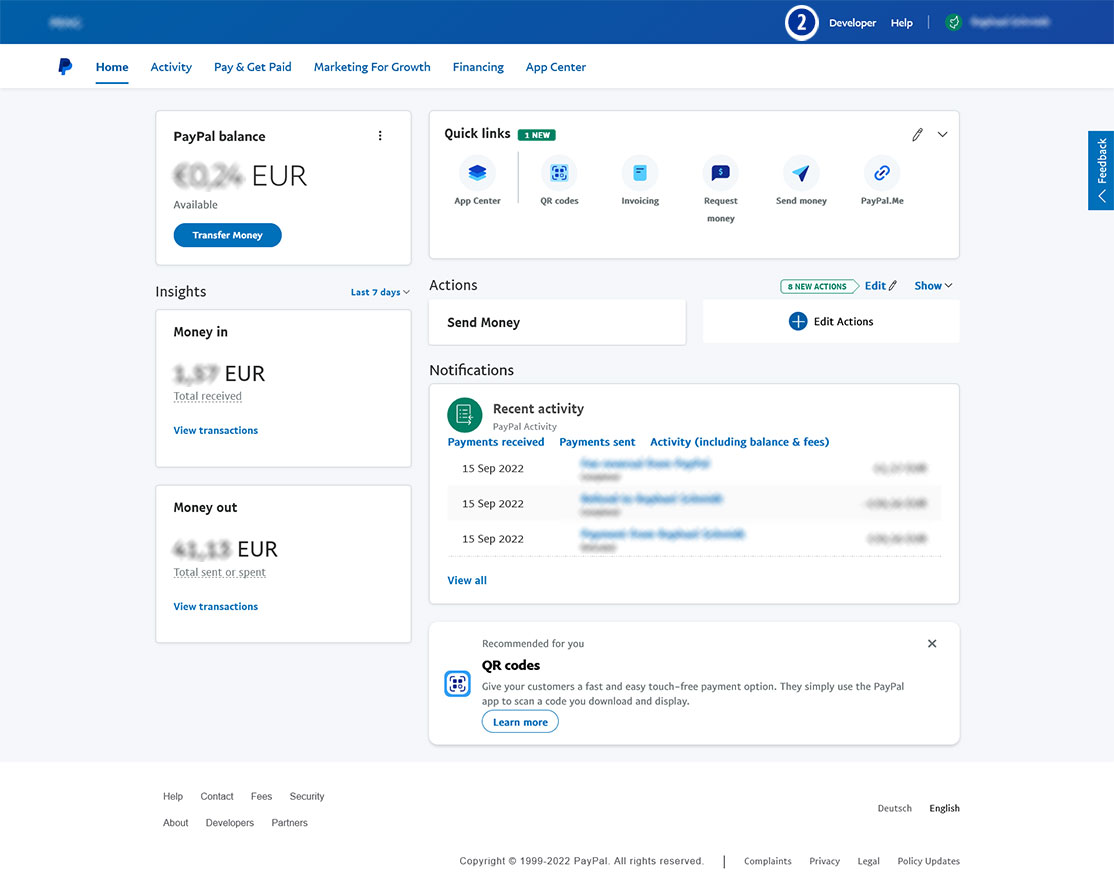
  3. Click “Go to Dashboard > Developer Dashboard” in the main navigation. [3]
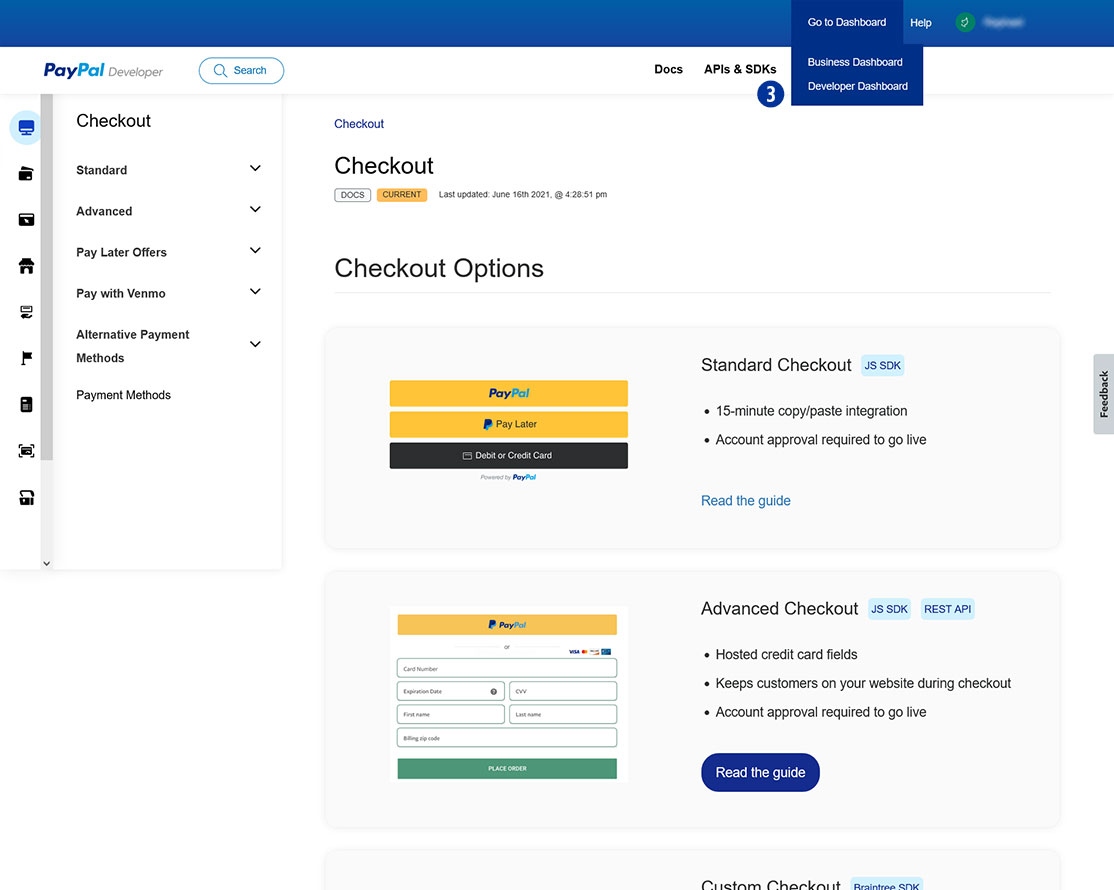
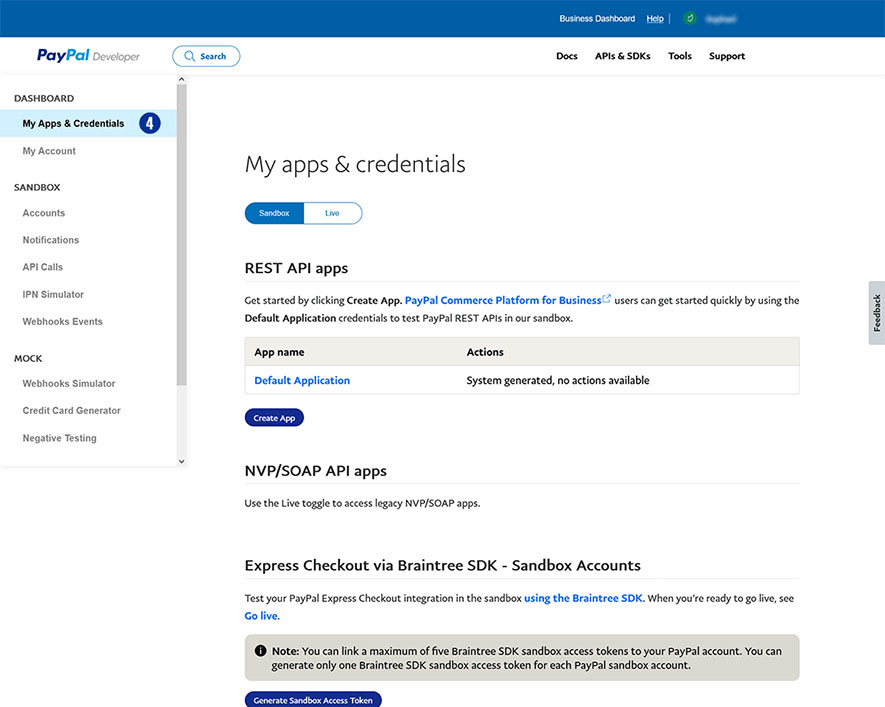
  4. Select “Dashboard > My Apps & Credentials”. [4]
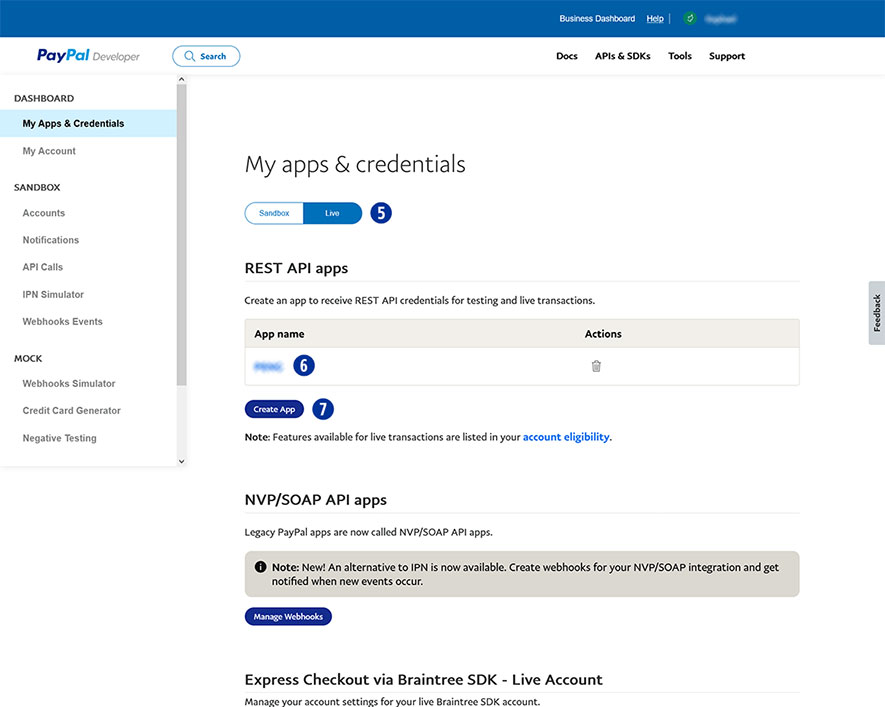
  5. Click the button “Live”. [5]
  6. Choose your shop name at “App name”. [6]
    If there is no shop name yet, click “Create App” and assign an app for your Partnershop (e.g. brand name). [7]
  7. Copy the “Client ID” [8] and paste it in the Partnershop Backend – Payment > Indicate your PayPal business account. [9]
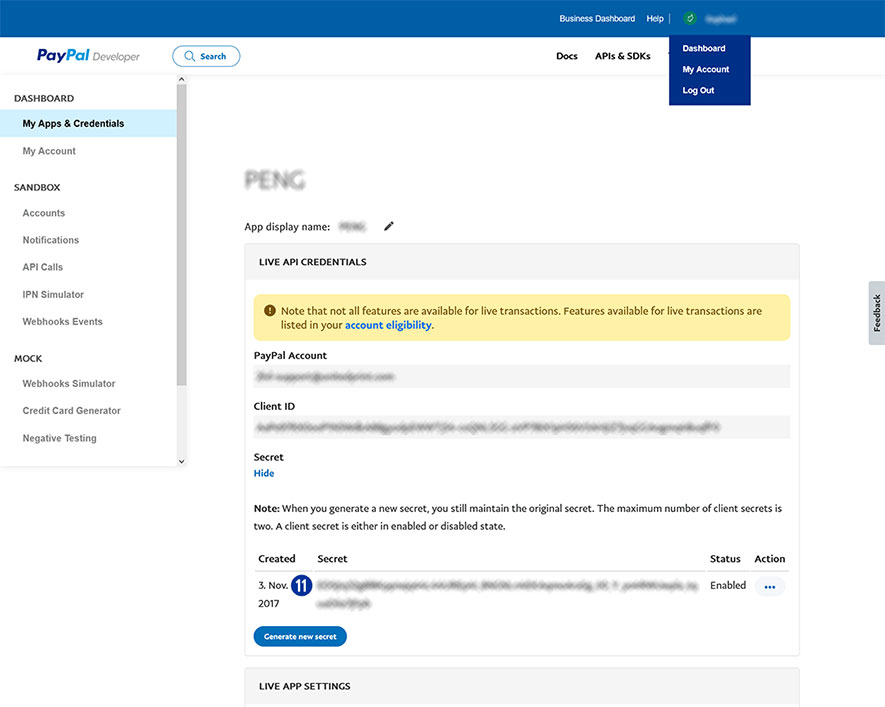
  8. In the PayPal account under “Secret” click the link “show” [10] to display the secret key.
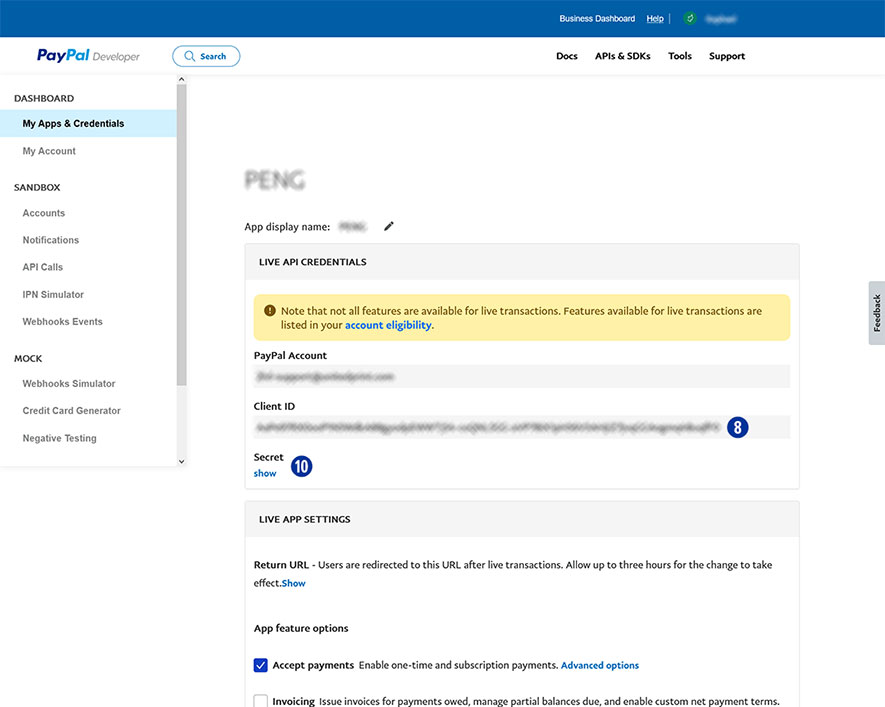
  9. Copy “Secret” [11] and paste it in the Partnershop Backend – Payment > Indicate your PayPal business account. [9]
  10. Confirm your entries by clicking the “Go!” button. [12]
Finally, activate the payment method PayPal in the Partnershop Backend – Payment > Activate “Payment via PayPal” for all customers. [13]
How can I mark an order as “paid”?

If an order from your customer was ordered with the payment method Advance payment or Invoice you must confirm receipt of payment.
To do this, follow the steps below.

Advance payment

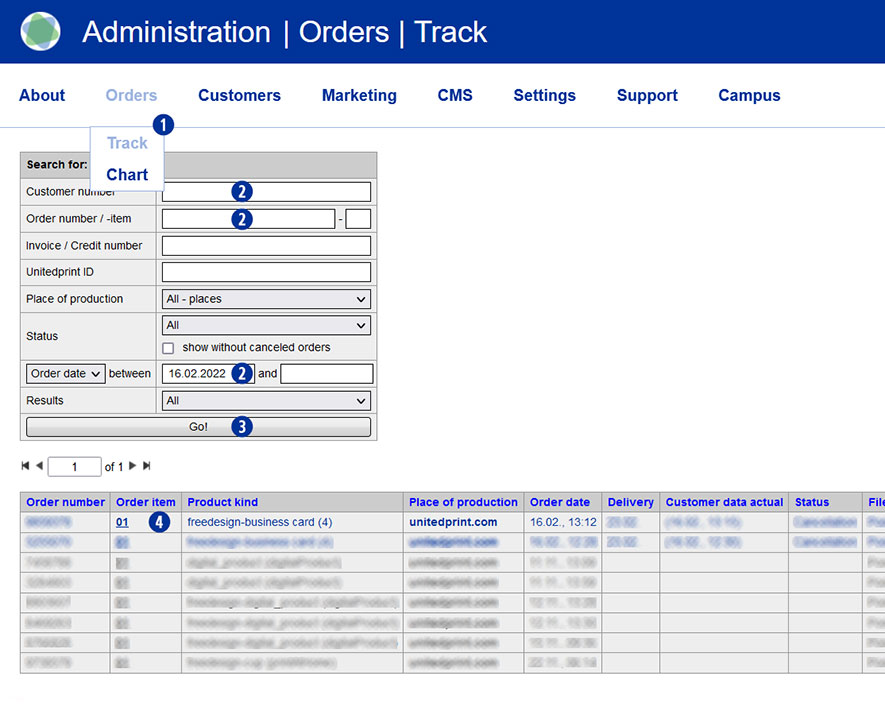
  • Switch to the Partnershop backend menu under Orders / Track. [1]
  • Select a search criterion [2] and confirm this with the “Go!” button. [3]
  • In the search results list, click on the order item in the column “Order item” that is to be confirmed. [4]

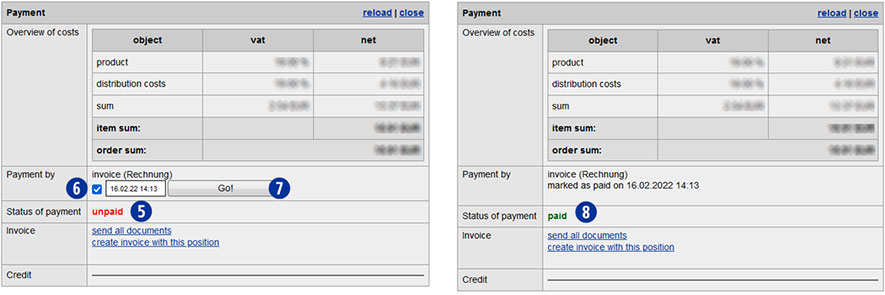
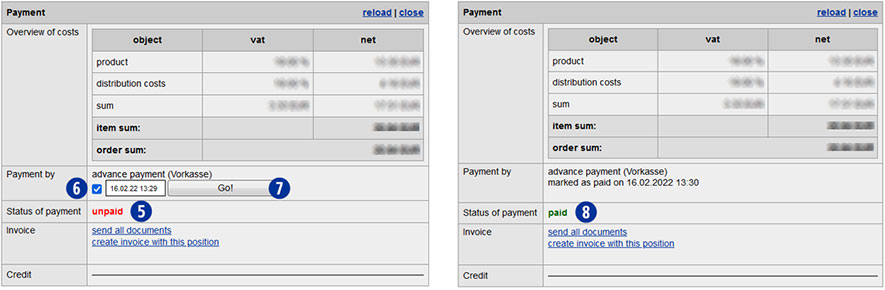
The current order status is displayed as “unpaid” in the line “Status of payment” of the Payment module. [5]

  • Within the detail view in the module “Payment” / “Payment by”, please activate the checkbox “advance payment”. [6]
  • Confirm your selection with the button “Go!”. [7]The order is shown as “paid” in the line “Status of payment”. [8]

Note
Only after conversion of the status to “paid” an order with Advance payment will be transmitted automatically to Unitedprint.

Invoice

  • Switch to the Partnershop backend menu under Orders / Track. [1]
  • Select a search criterion [2] and confirm this with the “Go!” button. [3]
  • In the search results list, click on the order item in the column “Order item” that is to be confirmed. [4]

The current order status is displayed as “unpaid” in the line “Status of payment” of the Payment module. [5]

  • Within the detail view in the module “Payment” / “Payment by”, please activate the checkbox “Invoice”. [6]
  • Confirm your selection with the button “Go!”. [7]The order is shown as “paid” in the line “Status of payment”. [8]

Note
If a PayPal payment is displayed as “unpaid”, please check the payment transactions in your PayPal business account.
Once the payment has been received, confirm receipt of payment there. If no payment has been received, please inform your customer.
Unconfirmed PayPal payments for Partnershop orders are not transmitted to Unitedprint and will therefore also not produced.