Marketing (2)
The application of a voucher takes place in the order step “shopping cart”.
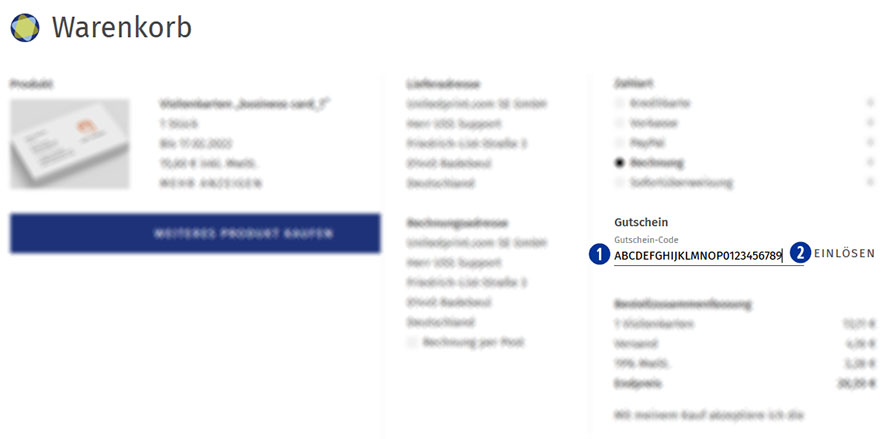
Please enter the coupon code in the input field “Voucher”. [01]
Confirm the entry and use of the voucher by clicking on the button “Redeem voucher”. [02]
An entered coupon code can be removed within the current order before the purchase. To do so, delete the coupon code from the input field “Coupon” and click the button “Redeem coupon”. [02]
A coupon code will not be accepted if the deposited minimum order value is undercut.
A coupon code can only be redeemed once.
Yes. Percentage of customer discounts can be granted.
To set a customer discount, go to the Partnershop backend under Customers. [1] Enter a search criterion (e.g. customer number) in the input mask [2] and then click the button “Go!”. [3]
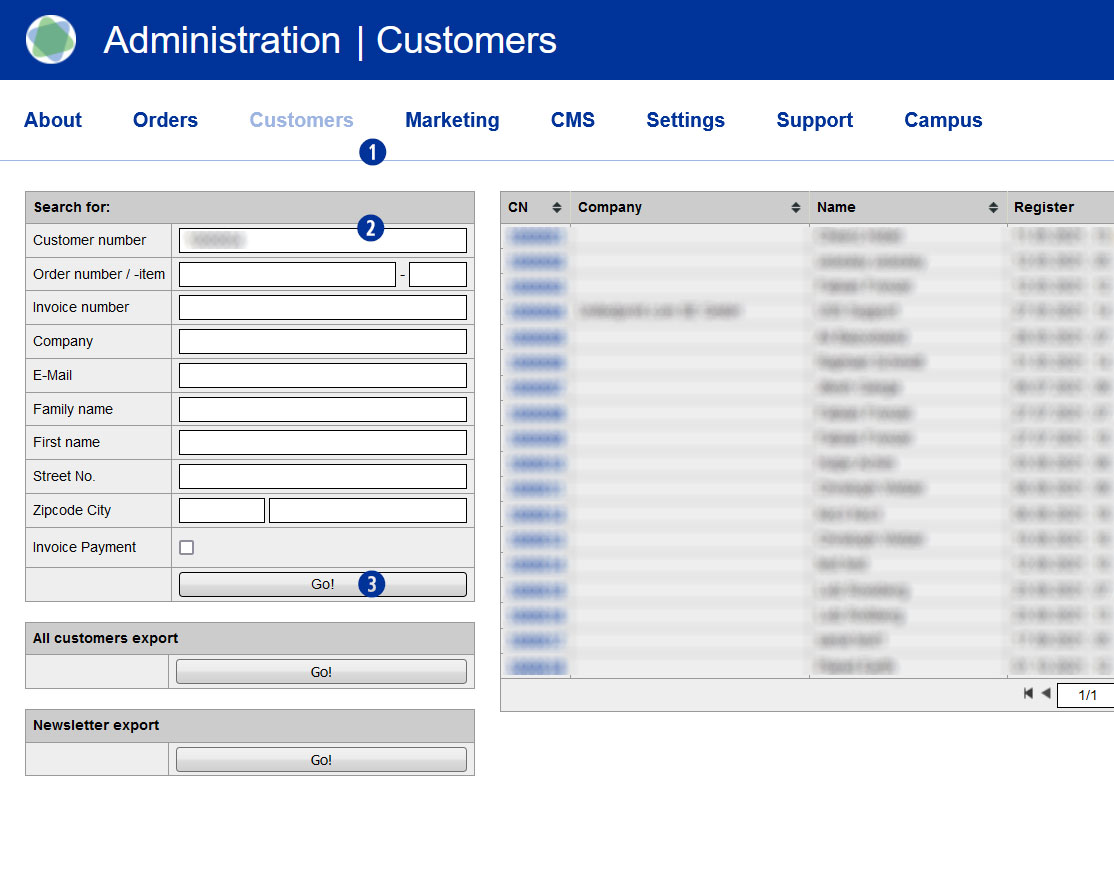
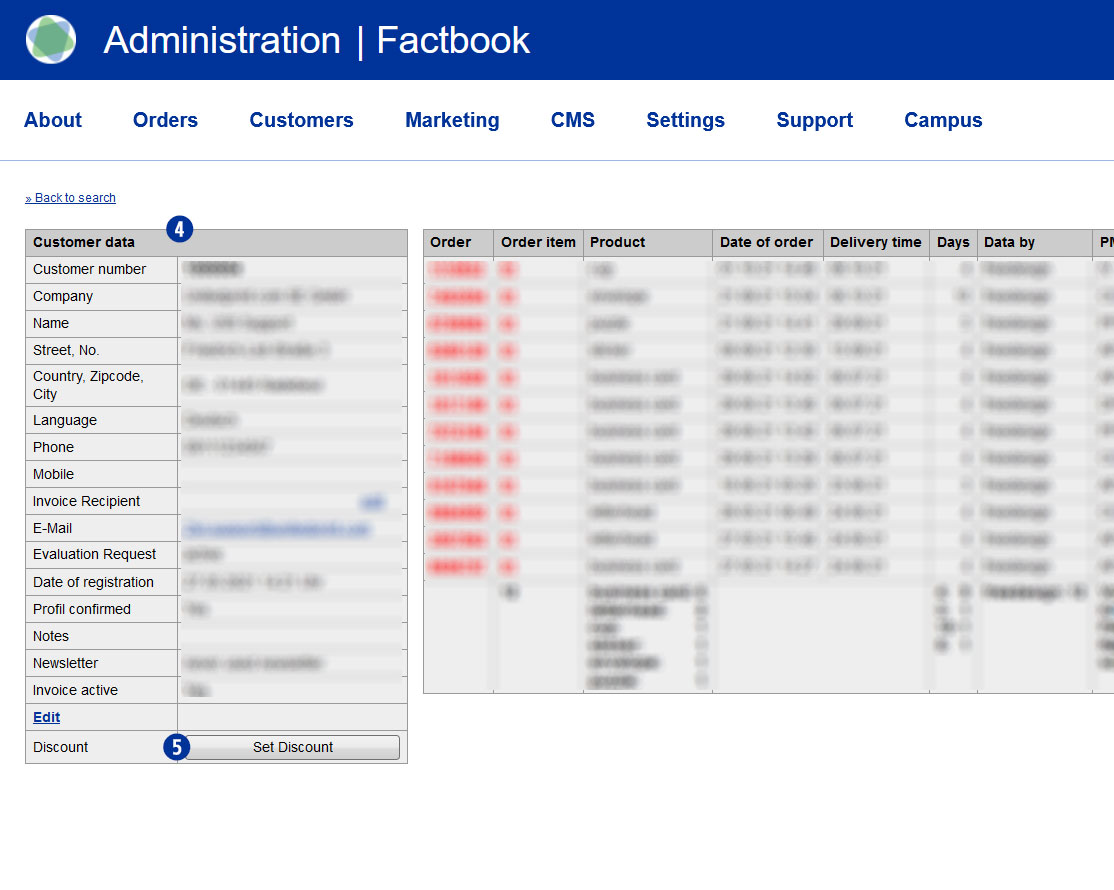
If the search result is successful, the window “Customer data” is displayed. [4]
Click the button “Set Discount” to enter a customer discount. [5]
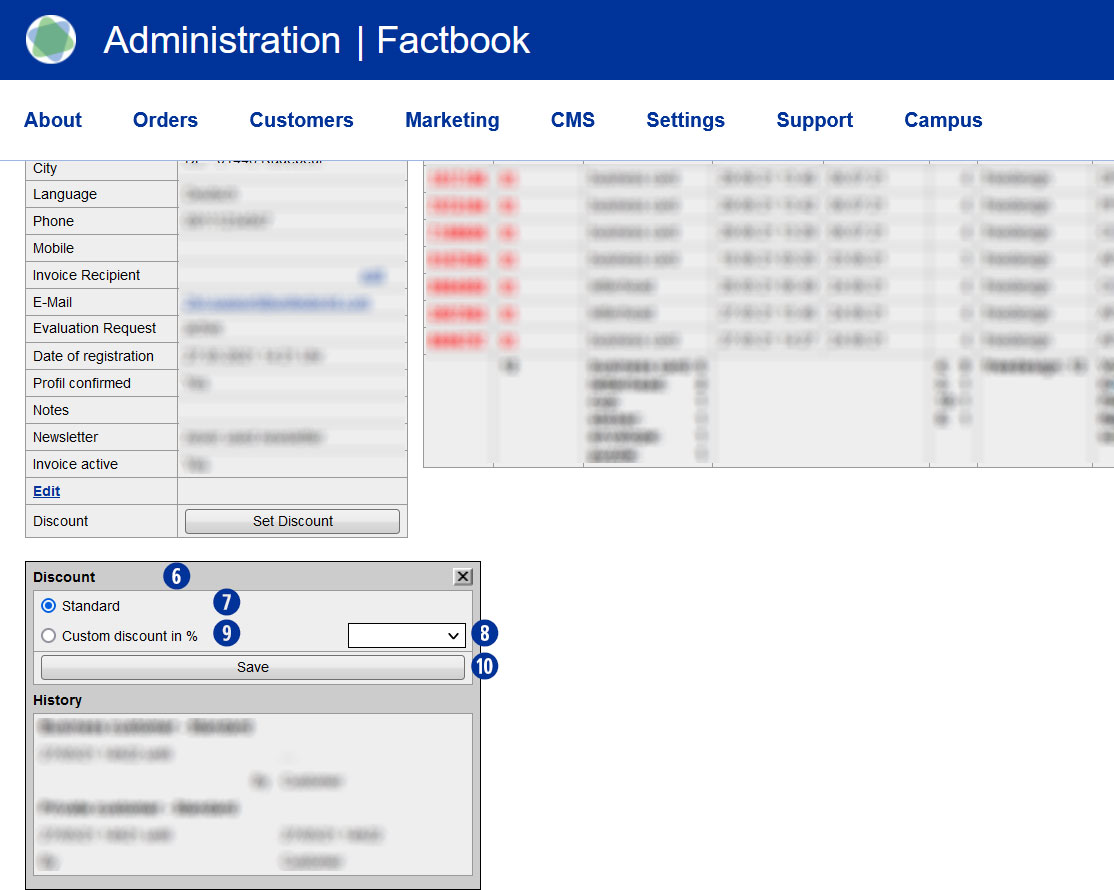
A mask “Discount” will opened. [6] If the customer has not yet deposited a discount, the mask “Discount” opens with the setting “Standard”. [7] Use from the selection list a discount rate between 1 and 100%. [8] The setting changes to “Custom discount in %”. [9] Save your selection by clicking on the button “Save”. [10]
Apart from the reduction in the product price, a deposited discount does not trigger any further actions on the type of shipment and the production period.
Note
A customer registered in the Partnershop (login) receives the discounted price already at the product selection.
If the customer is not yet registered in the Partnershop (login), the discount is displayed in the shopping basket.
In both cases, the discount is shown on the later invoice.
A partner with a discount can be identified in the Partnershop backend at the “SC” (Special Condition) in the “Customer data” window. [4]